MAX’S NOTES
How to make an invitation with AI and check it on your phone
Make a background with AI, add the date and address in an editor, and send yourself the finished image. That shows you the invitation at roughly the size your guests will see.
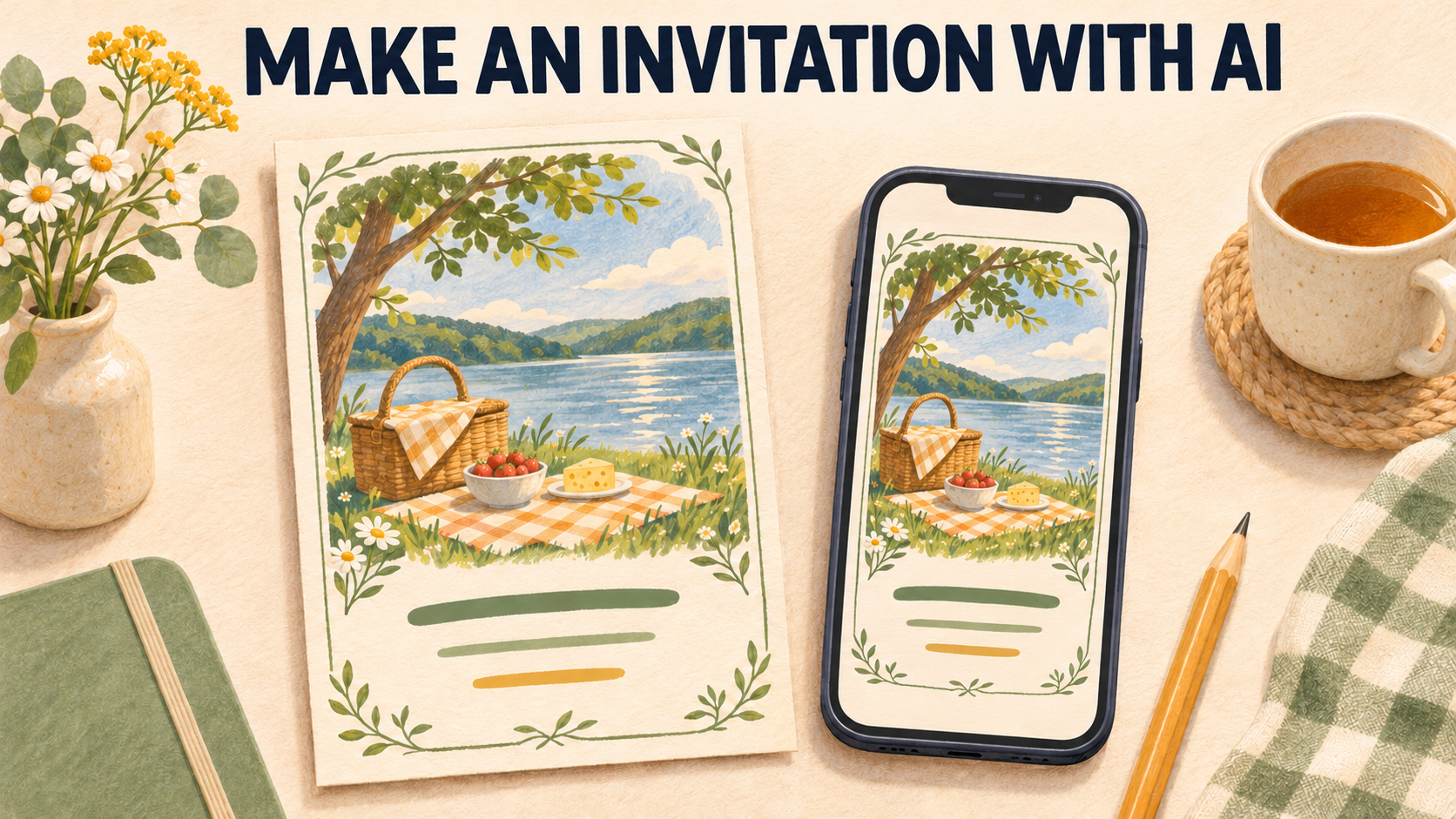
1. Write down what guests need to know Prepare the occasion, date, time, and place. For an unfamiliar venue, add the entrance or a landmark. You’ll need an image generator you already use and a computer with the Photopea web editor.
2. Make the background with this prompt Fill in your occasion and mood. Keep the date and address in your notes for now.
Create a vertical background for an invitation to [occasion]. Mood: [for example, warm and family-friendly]. Place the illustration in the middle. Leave a clear, light area at the top for the headline and space at the bottom for three lines of date, time, and location details. Keep those areas a solid color. No letters, numbers, or logos.
Save a background with room for every line. If the image looks good but the address only fits in tiny type, ask the AI to leave more space at the bottom.
3. Assemble and check the card In Photopea, open the background with File → Open. Select the Type tool (T), click the background and type your headline. Confirm with the checkmark in the top bar. Add the date, time, and location at the bottom in the same way. Start with dark text on a light background.
Choose File → Export As → PNG and save the image. Send it to yourself in a messaging app. On your phone, check two things. Every line is readable without zooming. The date, time, and entrance match your note. If you have to squint, enlarge the text or shorten the headline to free up space.