MAX’S NOTES
How to check text contrast on an AI-generated image
Open the image in an editor, use the eyedropper to pick the letter color and the background right next to it, then compare them in a contrast checker. If the lettering fades in one spot, move it or add a solid background behind it.
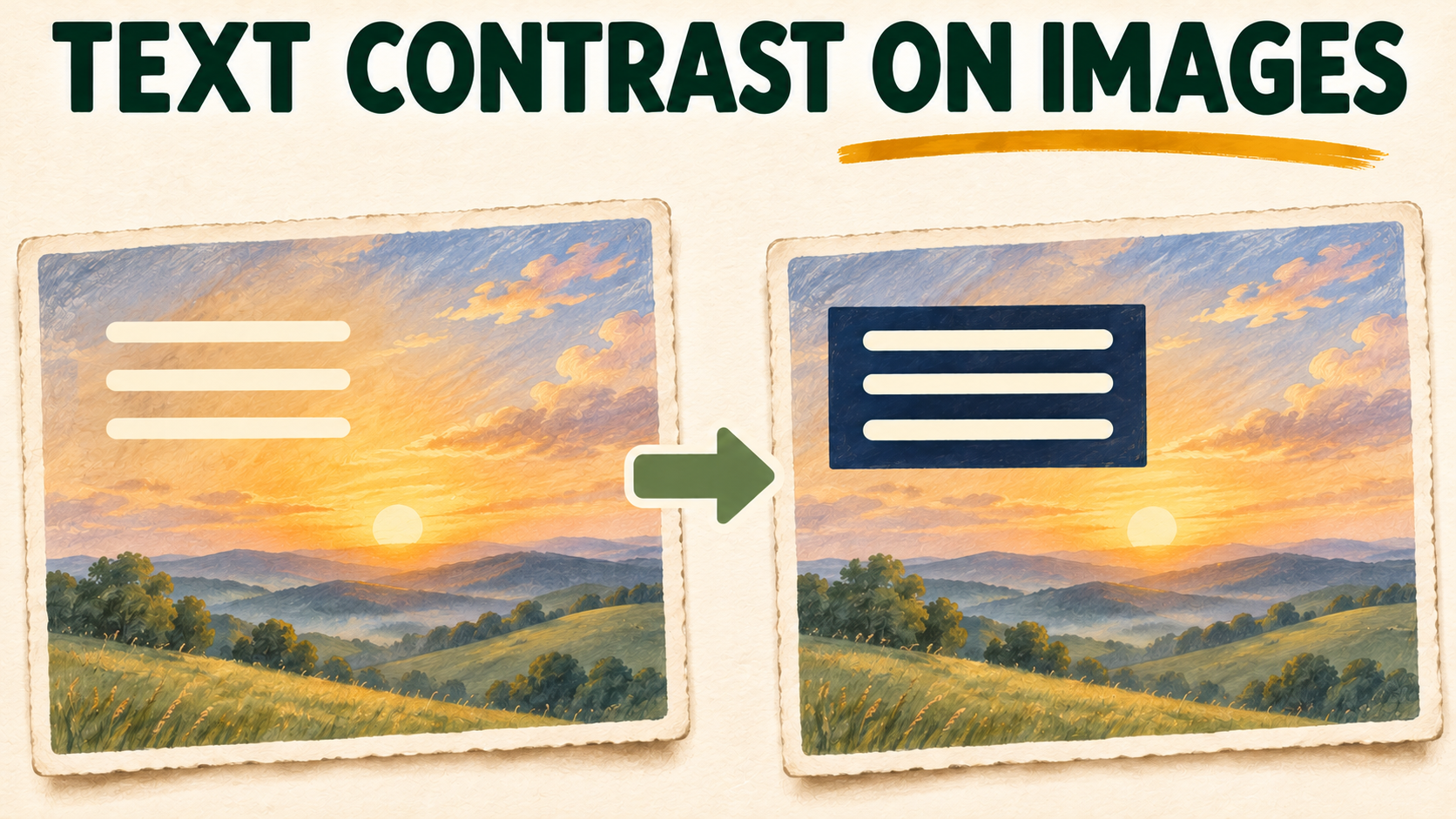
Sample two colors from the image
- Use the eyedropper to sample from the middle of a thick letter stroke. If you added the lettering as a separate layer, take the color code from the layer settings.
- Sample the background right next to the letter. If the background varies, repeat the measurement where the lettering is hardest to see. For white letters, start with the lightest spots behind the text.
- In WebAIM Contrast Checker, enter the lettering’s hex code in Foreground and the background’s hex code in Background. On an uneven background, check each sampled pair separately.
Fix the weak spot
If the AI drew the letters inside the image and you cannot edit them separately, generate a background without the lettering and add the text in an image editor. Try a solid backing behind the whole line, or move the lettering to a quieter part of the image.
Sources
- W3C WAI — Understanding SC 1.4.3: Contrast (Minimum)
- W3C WAI — Technique G18
- WebAIM — Contrast Checker