FROM THE AI FRONTIER
Frontline news — November 14: how to check an AI-built website
Jemima Abu’s talk on accessible interfaces: one clear requirement for AI and a practice keyboard journey through a form.
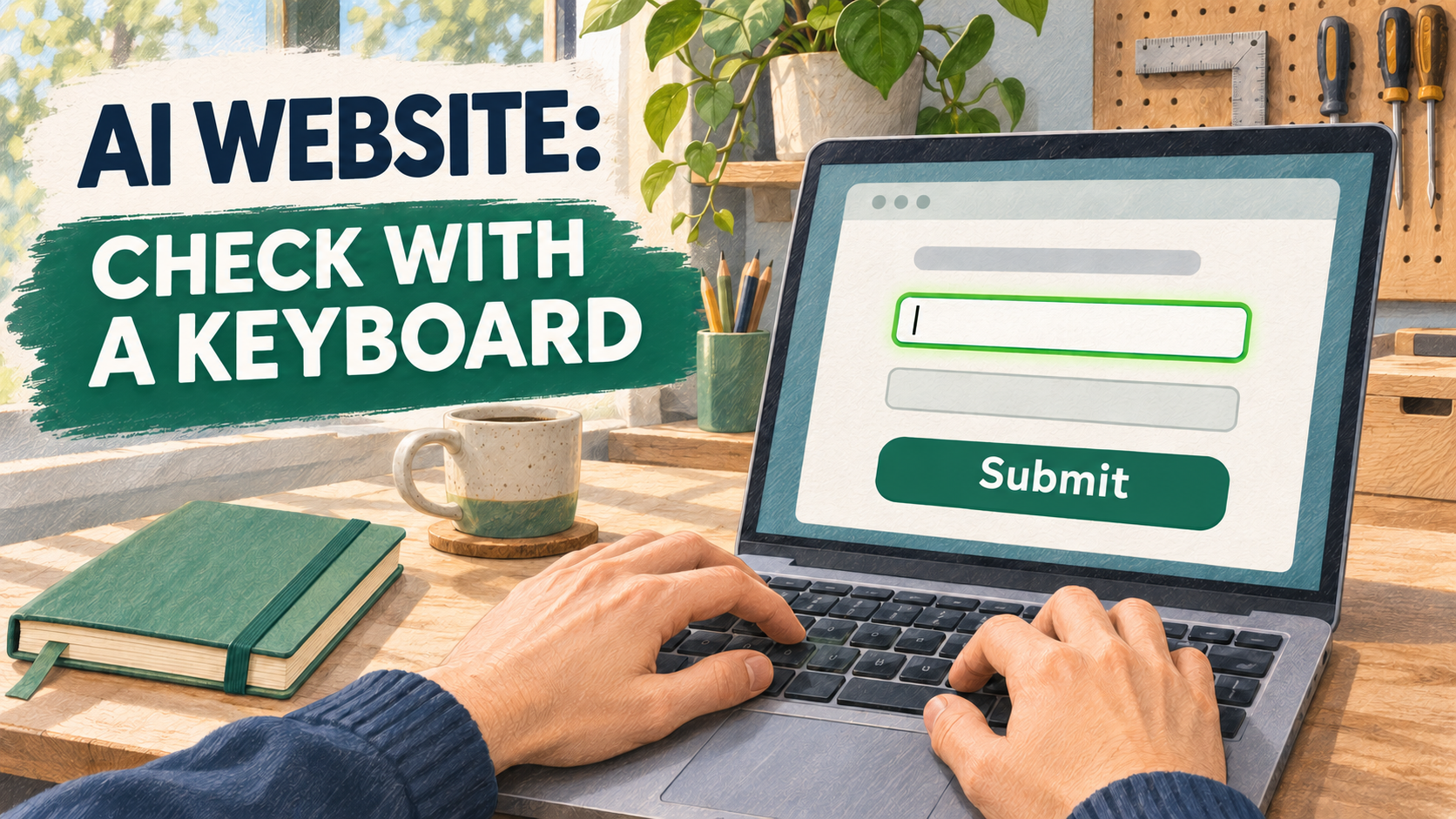
If you ask AI to build a website, add a checkable requirement: the main action must work using a keyboard. A good-looking screen still needs to be tried in practice.
This November 14, 2026 issue covers one talk within the past two weeks. The news is the recording’s publication, rather than a tool launching today. The slides are dated October 2026.
Video: can someone use the result?
Teach Your AI Agent to Build Products Everyone Can Use — Jemima Abu, CAIS.
- Channel: AI Engineer.
- Publication date: November 9, 2026, according to matching conf.directory and VibeLeaderboard listings. The primary YouTube timestamp is unavailable.
- Language: English.
- Duration: about 15 minutes; the listings differ by one second, showing 14:38 and 14:39.
Jemima Abu recommends including accessibility requirements in an agent’s task upfront. She requires interactive elements to work with a keyboard and notes that instructions do not guarantee full accessibility.
For beginners, the practical value is a concrete requirement for the output. The limitation: the talk concerns web development, rather than a universal setting for any assistant. We read the official text; the video’s visuals were not checked.
What you can check without reading code
W3C suggests starting with checks including keyboard access, visible focus and form labels. Focus highlights the element you are currently interacting with. These simple checks can reveal some barriers but do not replace a comprehensive accessibility assessment.
For a first pass, choose one short user journey: open a form, fill it out and submit sample data. Use a copy or test mode so you do not create real enquiries.
Example: a workshop registration form
This is a fictional learning scenario, not a test we performed. You asked AI to build a page with a registration form. It has a name field, a contact field and a submit button.
Before generation, write down acceptance criteria:
- Every field can be reached using the keyboard.
- The selected element is visible.
- Fields have clear labels.
- The outcome after submission is clear.
- An error makes clear which field needs correcting.
After generation, follow that path yourself. Record literal observations: “the highlight disappears after the contact field” is more useful than “the form is inconvenient”.
Give the assistant more than a rating. Provide the steps, the expected outcome and the actual behavior. Ask it to fix the specific barrier and explain what remains unchecked.
How to phrase the next task
An editorial prompt: “Create a practice registration form with name and contact fields. Include keyboard operation, a visible highlight for the active element and clear field labels. Provide a short manual checking plan. Do not declare the form fully accessible without checking it. State the limitations.”
If you already have a page, ask for a checking plan first. Then provide observations for one scenario. Avoid starting with a complete redesign: this makes it easier to see which change resolved the problem.
Sources
- AI Engineer — Teach Your AI Agent to Build Products Everyone Can Use
- AI Engineer — official text and timestamped transcript, Jemima Abu
- conf.directory — dated video listing
- VibeLeaderboard — publication date and original video link
- W3C WAI — Easy Checks, A First Review of Web Accessibility